Capturing videos for social media can be exciting, but the real challenge often comes during the editing process—you may need to remove unwanted segments or resize your video to fit different platform aspect ratios.
Luckily, an easy-to-use video cropper can solve this problem with ease. In this comprehensive guide, we’ve rounded up the 5 best video editing tools for cropping videos on Windows 10, along with practical tips to help you create more engaging content.
Tables of Content:
Also Interested in: Trim Videos on Windows 10 with Photos, Clipchamp & Media Player>>
#1 Crop Video in Windows 10 - Clipchamp
To make video cropping easier, Microsoft offers Clipchamp with versatile editing features for all kinds of video projects. This software is pre-installed on Windows 11, while for Windows 10 users, it can be easily downloaded from the Microsoft Store.
The cropping process in Microsoft Clipchamp is quick, flexible, and beginner-friendly. You can freely drag the cropping borders to achieve the perfect aspect ratio or use preset ratios designed for platforms like TikTok, YouTube, and Instagram. Whether you want to remove black borders, fix awkward framing, or resize videos for different social platforms, Clipchamp makes it easy to create polished, viewer-friendly content in just a few clicks.
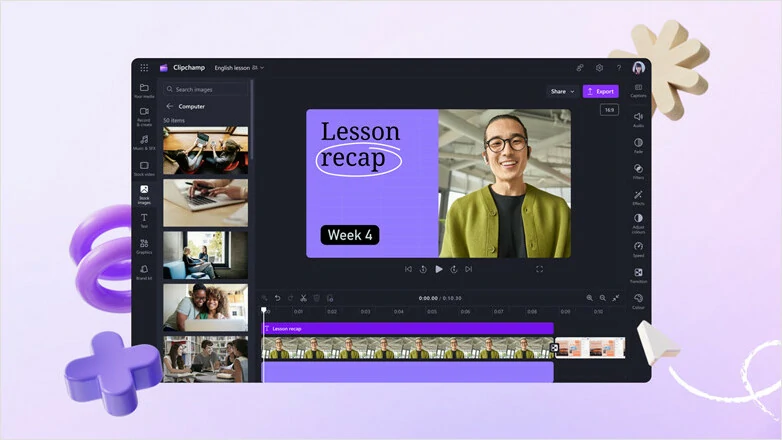
Crop Video in Windows 10 - Clipchamp
Pros of Cropping Video in Windows 10 with Clipchamp
Cons of Clipchamp
#2 Powerful Windows Video Cropper Online - FlexClip
FlexClip is a powerful online video cropper for Windows that strikes the right balance between simplicity and professional-quality results. It offers a wide range of preset aspect ratios, allowing you to easily resize videos for social media platforms with just one click. For more creative cropping, you can also explore its cropping library to shape and size your video exactly the way you want.
Tired of manually cropping out key moments? Try the automated reframing powered by FlexClip’s AI technology, which automatically resizes your video to horizontal, portrait, square, and more while keeping the subject in focus—even when it moves. Whatever workflow you choose, FlexClip makes video cropping effortless while supporting a wide range of video formats.
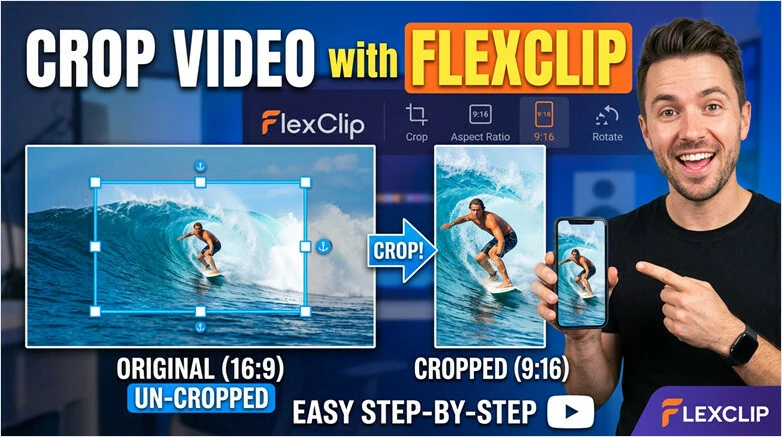
Powerful Windows Video Cropper Online - FlexClip
Pros of FlexClip's Windows Video Cropper
Cons of FlexClip
#3 Free Video Cropper for Windows 10 - VLC
VLC is an open-source media player that has a variety of editing tools, including video cropping. To resize the video on Windows 10, you need to manually set how many pixels you want to remove from four sides. After cropping, you can preview the cropped result once you saved the new file.
The biggest advantage is that it’s free to use and lets you download your newly created videos without watermarks. However, cropping videos in VLC Media Player on Windows 10 can be challenging, as it requires manually entering precise values that most users may not know. If you’re looking for a more straightforward workflow, VLC may not be the most beginner-friendly option.
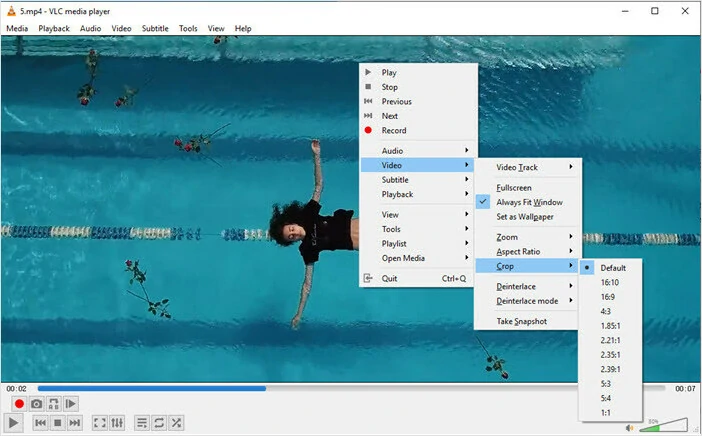
Free Video Cropper for Windows 10 - VLC
Pros of Cropping Video in Windows 10 with VLC
Cons of Using VLC
#4 Crop Videos on Windows 10 - 123Apps
123 Apps makes it easy to crop videos online in just a few minutes. Simply upload your file, select the desired area, and crop your video to the perfect size. If you prefer one-click resizing, you can choose from popular aspect ratios such as 16:9, 1:1, 4:3, 3:4, and 9:16. It also requires no account sign-up and does not add any watermarks to your final video.
You may have to watch out for things like advertisements and pop-ups if you're using the browser version of the video editor. Avoid clicking on unfamiliar links, and you can safely create professional-looking video projects.
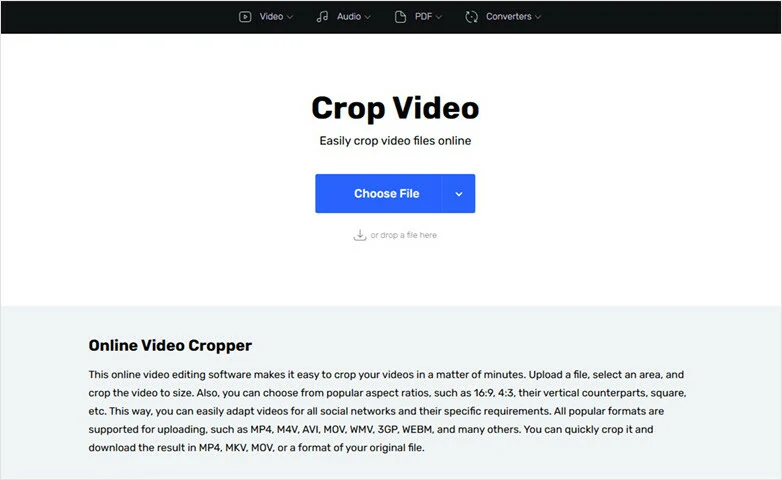
Crop Videos on Windows 10 - 123Apps
Pros of Cropping Videos in Windows 10 Using 123Apps
Cons of 123Apps
#5 Hidden Video Cropping Tool for Windows 10 - PowerPoint
PowerPoint is a great tool to create high-impact presentations. But most people don't know the trick - it's also a great answer to crop videos on Windows 10. It's easy to use and a solid solutions for Windows users.
To resize a video in PowerPoint, first insert the video into your presentation. Then go to Video Tools, select the Format tab, and click Crop. You can also preview the changes as you crop. If you have a poor internet connection or only have basic programs pre-installed, PowerPoint can be a great solution for cropping videos.
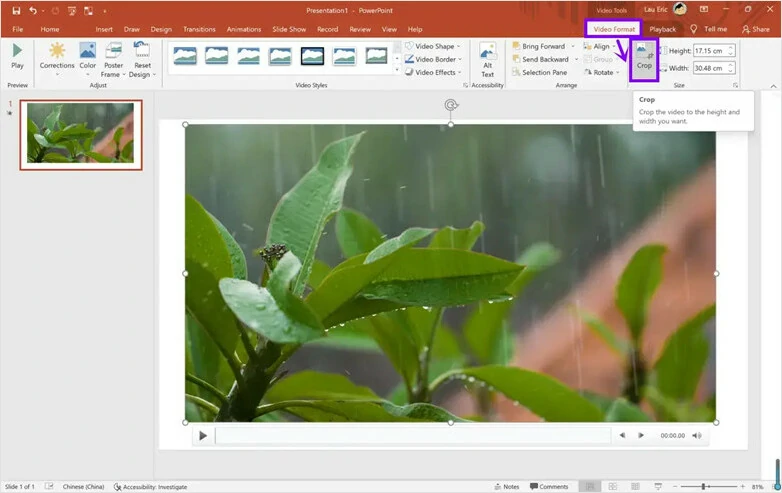
Hidden Video Cropping Tool for Windows 10 - PowerPoint
Pros of Resizing Video with PowerPoint
Cons of PowerPoint
How to Crop Video in Windows 10 Using FlexClip
After getting an overview of the 5 best video croppers for Windows, let’s take FlexClip as an example and walk through the step-by-step process.
1) Crop Video with Fixed Aspect Ratio
Firstly, let's begin with the most traditional way - cropping video with fixed aspect ratio. Simply click on Crop Video button and get started!

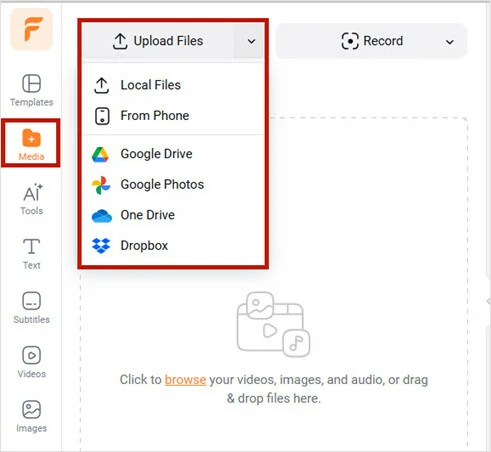
Upload Video to FlexClip for Basic Cropping
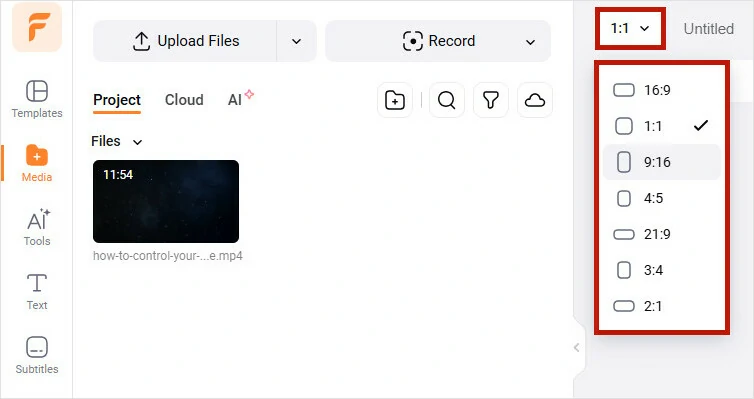
Select the Desired Video Ratio
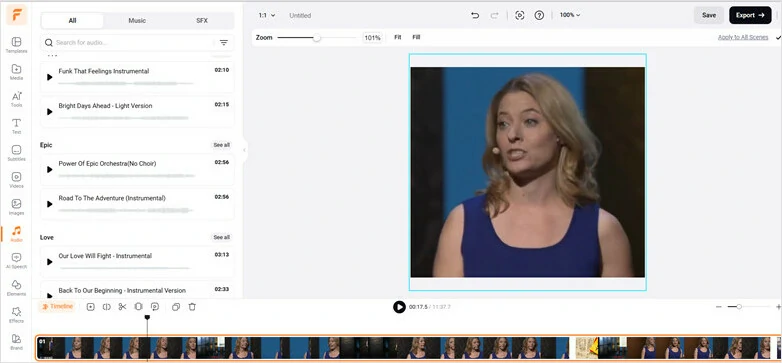
Edit the Cropped Visuals as You Like
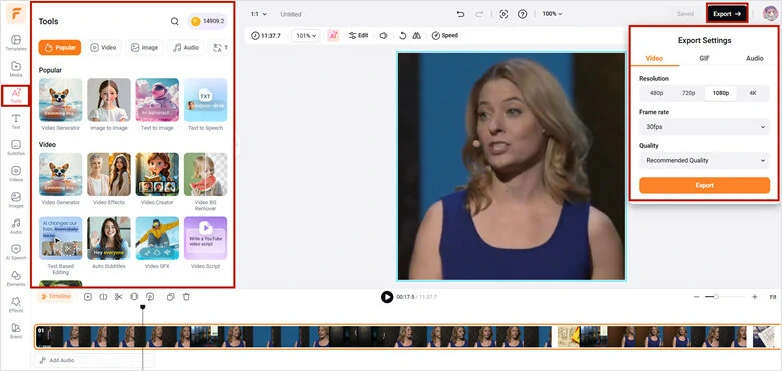
Download and Share Cropped Video
2) Crop Video into Creative Shape on Windows 10
Standard aspect ratios are safe and reliable, but they often lack creative expression—something that doesn't quite match your uniquely expressive style. Want to crop your video into a circle, heart, star, or other more visually appealing shapes? The method below is exactly what you’re looking for.
Simply tap Crop Video into Creative Shape icon below and start the creative journey with our step-by-step guide.
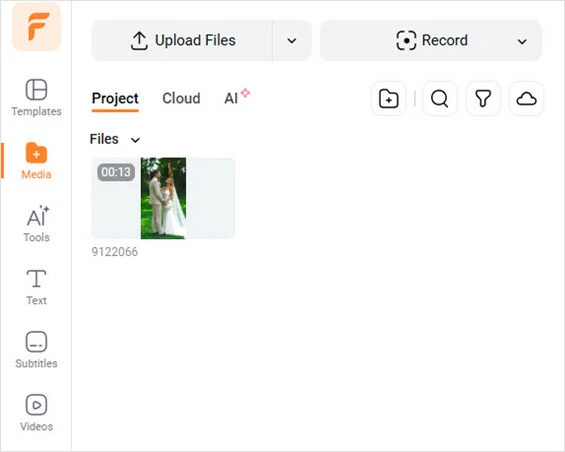
Open FlexClip and Upload the Video You Want to Crop
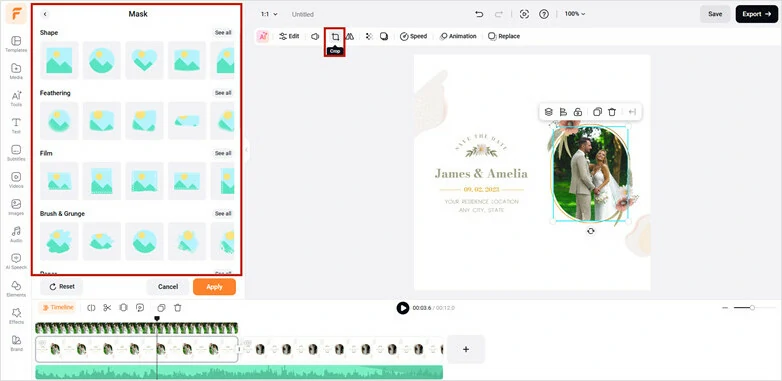
Add as Layer and Crop the Video into Creative Shape
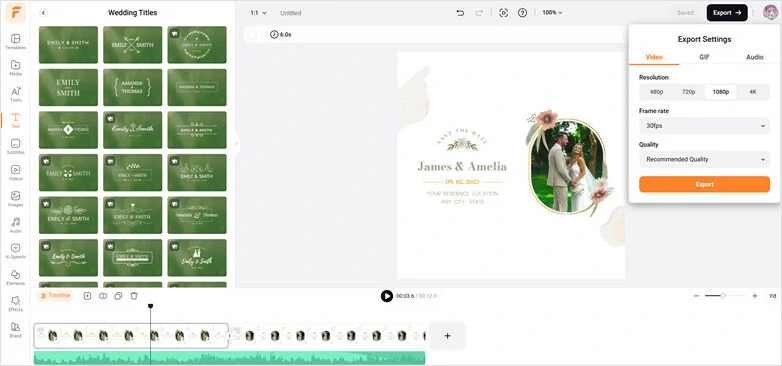
Customize the Cropped Video and Export to Download or Share
3) Automatically Crop Video on Windows 10 Using FlexClip
The last method we’ll introduce for cropping videos is FlexClip’s long-to-short converter. Powered by AI face tracking, it can automatically reframe your videos into landscape, portrait, or square formats while keeping the main subject perfectly centered. This makes your videos instantly ready for social media sharing — no manual editing required.
Easily tap on Auto Crop Video button and get started!
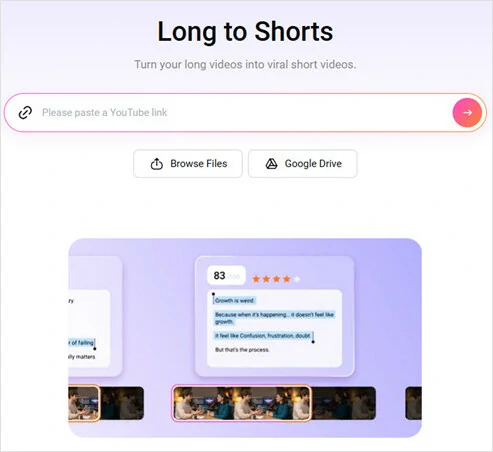
Upload Your Video to FlexClip's Long-to-short Converter
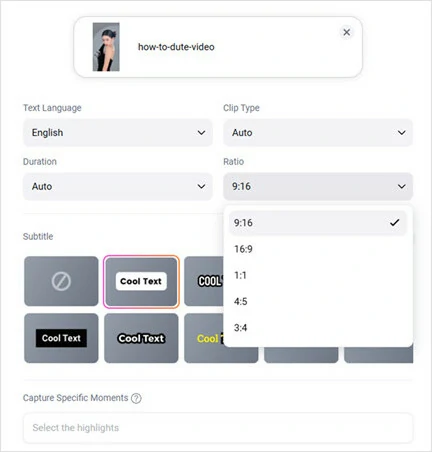
Adjust the Settings of Your Cropped Video
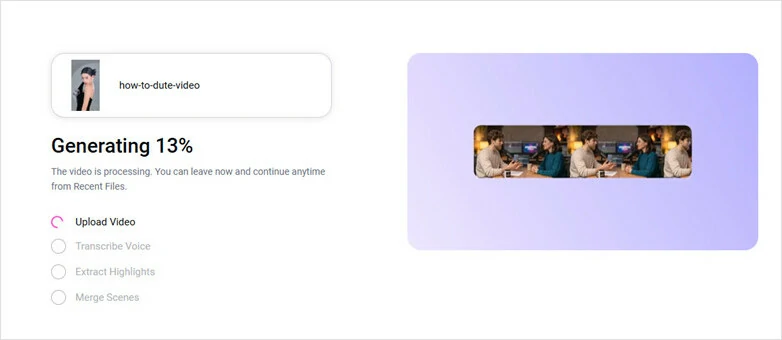
Start the Cropping Process in FlexClip
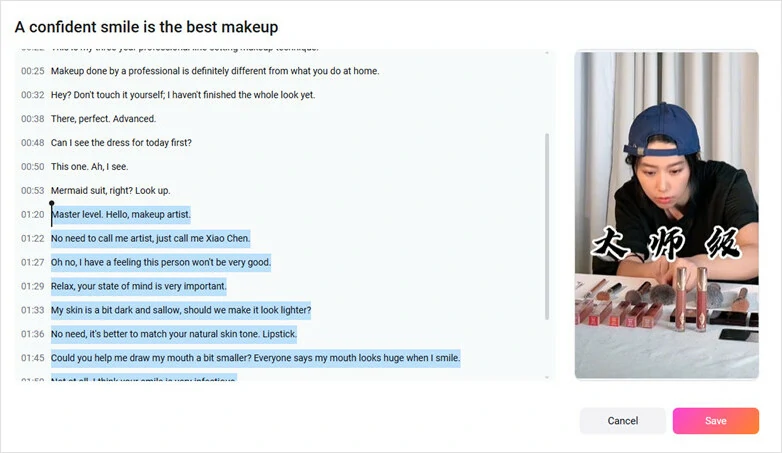
Preview and Edit the Cropped Video
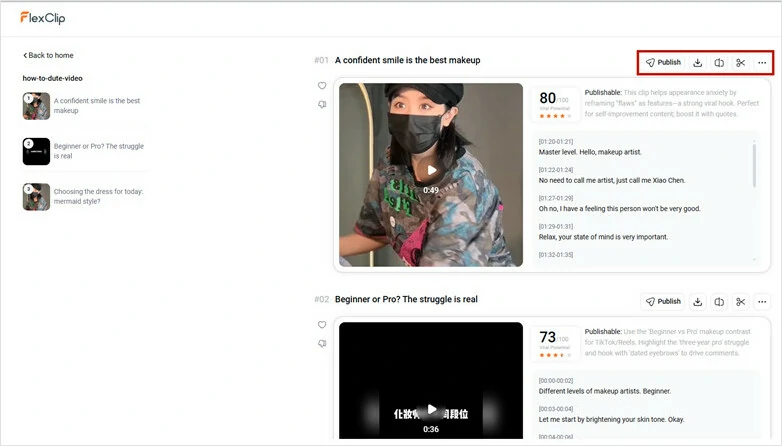
Download and Share Your Cropped Clip to Social Media
FAQ About Cropping Videos on Windows 10
#1 What's the difference between crop, trim and split?
Crop, trim and split are three widely used ways to remove unwanted parts from videos. But they have fundamental differences between all of them.
Cropping allows you to remove your video's left, right, and bottom corners. With cropping, you can change the perspective or impression of a video and its overall composition.
Trimming is used to get rid of unwanted things at the beginning or ending part of your video.
Splitting is to divide your video into several parts. You can avail of this feature to eliminate any section of your video.
2. Can I crop a video in Windows Media Player?
No. Windows Media Player doesn't support the cropping feature. It's mainly designed for playing audio and video files, not for editing.
3. How to crop video to platform's aspect ratio?
To crop a video to a platform’s aspect ratio, you’re basically resizing and reframing it so it fits the format each platform prefers. Here are the most common aspect ratios:
4. How Do I Crop an MP4 Video?
MP4 is the most popular video format. FlexClip enables you to crop an MP4 video with great ease. Apart from cropping MP4 videos, it also allows you to convert MP4 videos to other formats and make edits to videos.




FlexClip AI Video Maker
Reach professional-quality videos faster with easy editing tools, templates, and smart AI.
Start Now for Free
Hot & Trending
-
Best Ways to Find Music in YouTube Videos
-
Instagram Story Video Quality Bad After Upload? Fix It!
-
How to Repost Video on TikTok & How to Remove TikTok Repost
-

Improve Video Quality Online: 3 AI Video Quality Enhancers You Can't Miss
-

4K Convert to HD 1080p without Watermark: Best 4k Video Converters
-
Best 8 Free Video Editors - No Download Required
-
Top 13 Birthday Video Makers with Music and Effects Free
-
How to Search Filters on TikTok & Use a Filter You See - TikTok Filter Guide